Using git worktree for parallel AI agent development
- git worktree lets you create separate working directories per branch inside one repository, which fits parallel AI agent workflows well
- It separates context without stash, and shares Git history and objects without cloning the repo multiple times
- You cannot check out the same branch in two worktrees at once, and dependencies still need to be installed per worktree
- For many AI-generated task branches, squash merge is usually the cleanest way to integrate results
TL;DR
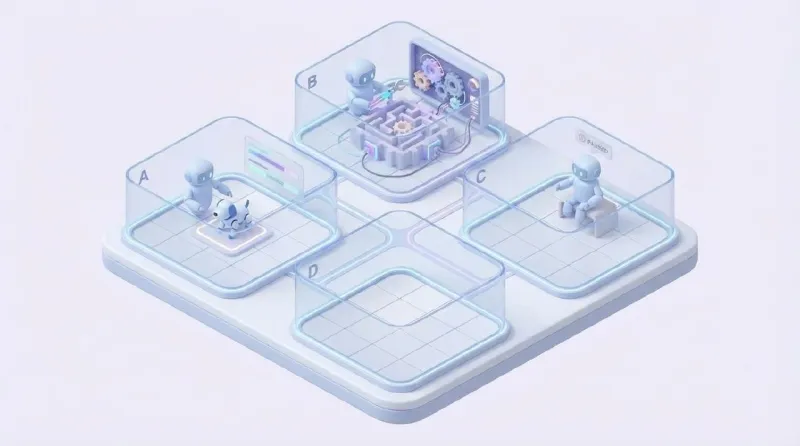
If you want to run multiple AI coding agents in parallel, git worktree is the answer. It gives each branch its own working directory inside the same repository, so you do not need stash gymnastics or multiple clones.
What is Git Worktree?
Even if you are juggling several tasks, a human developer can still only work in one context at a time. The old pattern was to stash your current changes, check out another branch, do some work there, and then come back and pop the stash later.
git worktree changes that entire flow. It lets one Git repository have multiple working directories attached to it. Normally, a repository has a single working tree. With worktree, you can keep the same .git history and object database while checking out different branches into separate folders.
The structure looks like this:
/projects/
├── my-app/                 ← main worktree (main branch)
│   └── .git/               ← real git data
├── my-app-feature/         ← linked worktree (feature/auth branch)
│   └── .git                ← not a directory, but a file pointing to the main .git
└── my-app-hotfix/          ← linked worktree (hotfix/login branch)
    └── .git
Each worktree has its own HEAD, index, and working files, but they all share commit history and Git objects. In terms of Git objects, extra disk usage is minimal. But dependencies like node_modules or .venv still need to exist per worktree, so heavy projects can consume disk space quickly if you keep many worktrees around.
There is also one important limitation: you cannot check out the same branch in two worktrees at once. This is intentional. It prevents the confusion of having the same branch diverge across multiple active directories.
When did it arrive?
git worktree officially landed with Git 2.5 on July 29, 2015. A major contributor was Nguyễn Thái Ngọc Duy, who had been refining the idea for years. At launch it still wore an experimental label and had some submodule compatibility issues, but those rough edges have largely been resolved over time.
Later releases added more lifecycle commands. Git 2.7 brought git worktree move and git worktree remove, and Git 2.15 introduced git worktree lock and git worktree unlock.
I only started paying real attention to it recently, but clearly many people had already been quietly using it for years. It spent nearly a decade as one of those “great if you know it” features. Once AI coding agents became normal, though, it suddenly started feeling essential.
Harness engineering: why worktree matters
Harness engineering is not about building the AI agent itself. It is about designing and orchestrating the environment you delegate work into. git worktree becomes incredibly powerful once that environment exists.
Agents like Claude Code and Codex read and write files directly in the working directory. If an agent is working on the feature/payments branch, that directory may be sitting in a half-modified state at any moment.
What happens if you check out another branch in that same directory, or launch a second agent into it? Best case, you create confusion. Worst case, you end up with conflicting file states and agents working from the wrong code snapshot.
The old solution was git stash, but once several stashes pile up, it becomes annoying to remember which one belongs to which task. Cloning the repository multiple times also works, but now you are duplicating repo state and losing the convenience of sharing local history and objects directly.
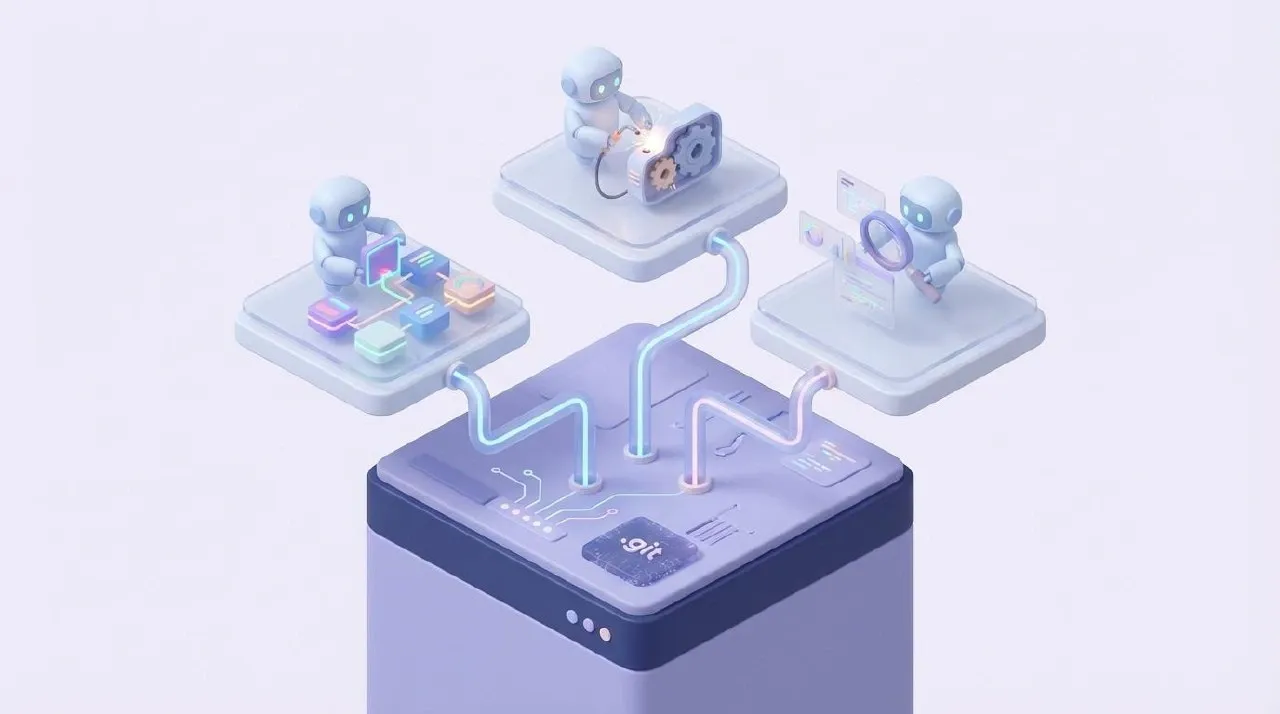
git worktree solves this cleanly. Each AI session gets a fully independent directory tied to its own branch, while history and objects remain shared. Claude Code made this even more explicit by adding an official --worktree flag in February 2026, effectively promoting this workflow to a first-class citizen.
Starting a worktree-based workflow
The basic commands are simple:
# Create a new worktree with a new branch
git worktree add ../my-app-feature -b feature/auth

# Create a worktree from an existing branch
git worktree add ../my-app-hotfix hotfix/login

# List all attached worktrees
git worktree list
There are two common directory layouts. The first puts worktrees next to the main project:
/projects/
├── my-app/
├── my-app-feature-auth/
└── my-app-hotfix-login/
The second keeps them inside the project under a trees/ folder:
/my-app/
├── src/
├── .git/
└── trees/
    ├── feature-auth/
    └── hotfix-login/
If you use the second pattern, do not forget to add trees/ to .gitignore. Otherwise the main worktree will see them as untracked files.
There is one more thing to handle when creating worktrees. Files ignored by Git, such as .env, are not copied automatically. A plain cp works, but then you need to repeat that every time the main .env changes. A symlink is often more convenient because updates in the main worktree are reflected everywhere:
# Create worktree, then link .env
git worktree add trees/feature-auth -b feature/auth
ln -s "$(pwd)/.env" trees/feature-auth/.env
If you have multiple environment files like .env.local and .env.development, it helps to wrap this in a shell function:
# ~/.zshrc or ~/.bashrc
wt() {
  git worktree add "$1" -b "$2"
  for f in .env .env.local .env.development; do
    [ -f "$f" ] && ln -s "$(pwd)/$f" "$1/$f" && echo "linked $f"
  done
}

# Usage
wt trees/feature-auth feature/auth
If you use Claude Code, the official --worktree flag makes the flow even simpler:
# Create a worktree and start Claude Code in one step
claude --worktree feature-auth
That single command creates .claude/worktrees/feature-auth/, creates the branch, and starts the Claude session inside it.
Working inside a worktree
Once the worktree exists, you just move into that directory and work as usual. IDEs and editors can also open each worktree as a separate project.
With AI agents, it looks like this:
# Terminal 1 - feature work
cd ../my-app-feature-auth
claude # or codex, gemini-cli, etc.

# Terminal 2 - hotfix work, at the same time
cd ../my-app-hotfix-login
claude
While one agent is working, you can review the output from another. You stop being the person waiting for code and start being the person directing parallel work.
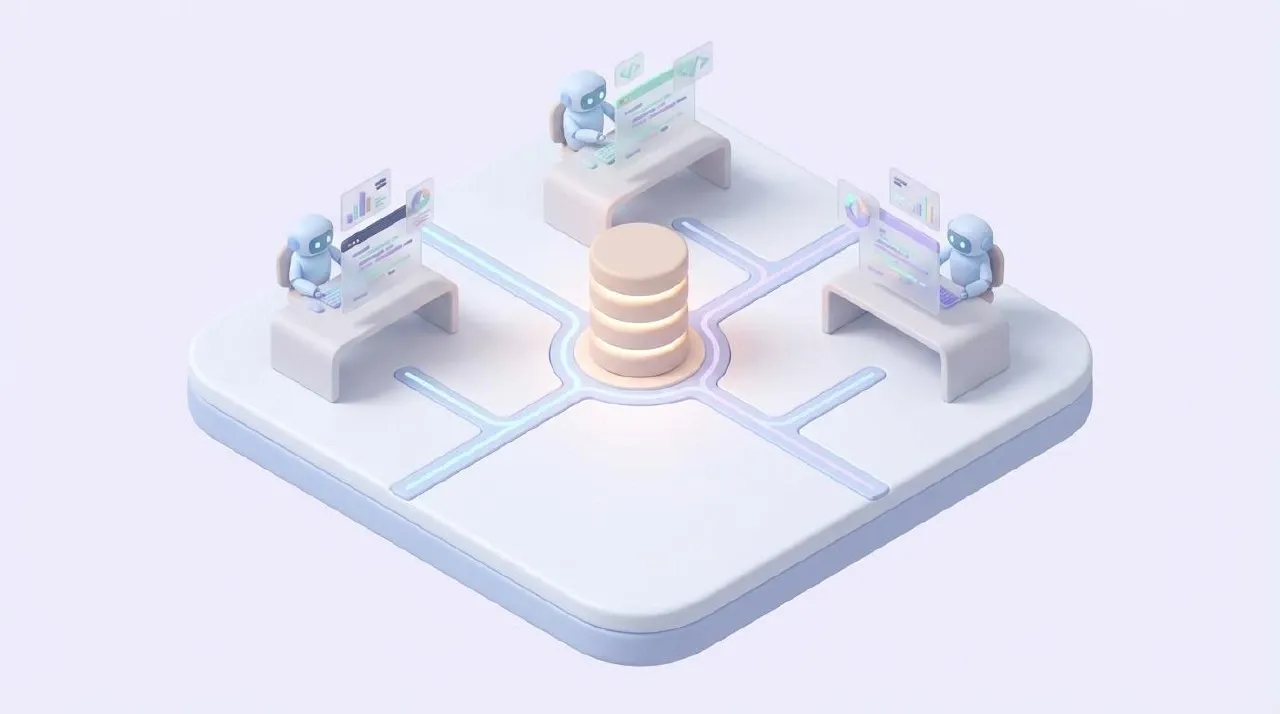
Commits inside each worktree work exactly the same as usual. Since the branch is already separated, you do not have to think much about context switching.
git add .
git commit -m "feat: add auth middleware"
After the work is done
Once the task is finished, the rest looks like a normal PR workflow. If you are already inside the worktree directory, push naturally goes to that branch:
cd ../my-app-feature-auth
git push -u origin feature/auth
gh pr create --title "Add auth middleware" --base main
After opening the PR, there are three common ways to integrate the branch back into the main worktree.
Squash merge — usually the cleanest for AI-generated work
Inside the worktree, the agent may have made several exploratory commits. Those process commits usually do not need to live forever in main history. Squash merge compresses everything into one clean commit. On GitHub you can choose “Squash and merge”, or in the CLI:
git merge --squash feature/auth
git commit -m "feat: add auth middleware"
Rebase merge — when you want perfectly linear history
This rebases the worktree branch on top of main and then fast-forwards it in. It is useful when the commits are already clean and meaningful on their own:
# Inside the worktree (or use master instead of main if needed)
git rebase main

# Back in the main worktree
git checkout main
git merge feature/auth --ff-only
Merge commit — when you want to preserve branch history
This creates an explicit merge commit, leaving a visible record that feature/auth was integrated at that point in time. It is useful for larger work units or when branch-level traceability matters:
git checkout main
git merge feature/auth
For many small tasks handled by AI through harness engineering, squash merge tends to fit best. There is usually no reason to keep all the intermediate trial commits. From the perspective of the main worktree, one clean commit that says “this feature was added” is often enough.
Once the merge is done, clean up the worktree.
Removing a worktree
# Remove the worktree
git worktree remove ../my-app-feature-auth

# Delete the branch too
git branch -d feature/auth

# Clean up stale worktree metadata
git worktree prune
If the worktree was created through Claude Code’s --worktree option, it will automatically delete the worktree and branch when the session ends with no changes. If commits exist, Claude asks whether to keep them.
Things to watch out for
Do not parallelize tasks that edit the same files unless you are prepared to handle merge conflicts later. Worktree does not magically solve overlapping changes. If two agents touch the same file, the merge conflict still exists. You still need to split work along sane boundaries.
Servers using the same port will also collide. If you run multiple dev servers from multiple worktrees at once, make sure they use different ports or only run one at a time.
It is also worth running git worktree prune periodically. If you manually delete directories, stale worktree metadata can linger and clutter the list. git worktree prune cleans those invalid references up.
Closing thoughts
git worktree first appeared in 2015, but this may be the exact era it was waiting for. Once AI coding agents become a normal part of development, running multiple isolated workspaces in parallel stops being a niche trick and starts feeling like the default.
Instead of repeatedly stashing and checking out branches, you can switch context just by changing directories. That is why git worktree feels less like a neat Git feature now, and more like core infrastructure for parallel AI-assisted development.
Refs
- Git Official Documentation - git-worktree
- Git Worktrees: The Feature That Waited a Decade for Its Moment
- Claude Code Common Workflows - Worktree Support
- Parallel Vibe Coding: Using Git Worktrees with Claude Code
- How we're shipping faster with Claude Code and Git Worktrees
- Mastering Git Worktrees with Claude Code for Parallel Development Workflow